FAQs
I’ve just downloaded the app, am I ready to roll?
Welcome to CamperMate - your road trip companion for finding and booking campgrounds and activities. Once you’ve opened the app, you’re ready to start finding what you need by searching the map and using the search bar and the right-hand menu to filter for categories. We wish you safe and happy travels!
What do the different icon colours mean?
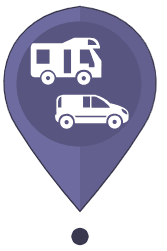
Purple – Paid Campground
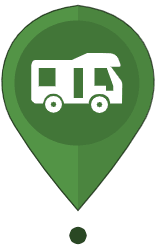
Green – Free Campgrounds
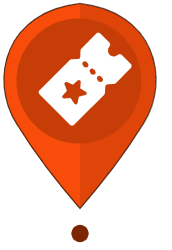
Orange - Activities such as scenic flights, walks, water activities and more.
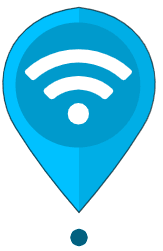
Blue - Public Amenities such as dump stations, toilets and showers.
Each category has an icon for its particular category.
How do I filter for things I can book now?
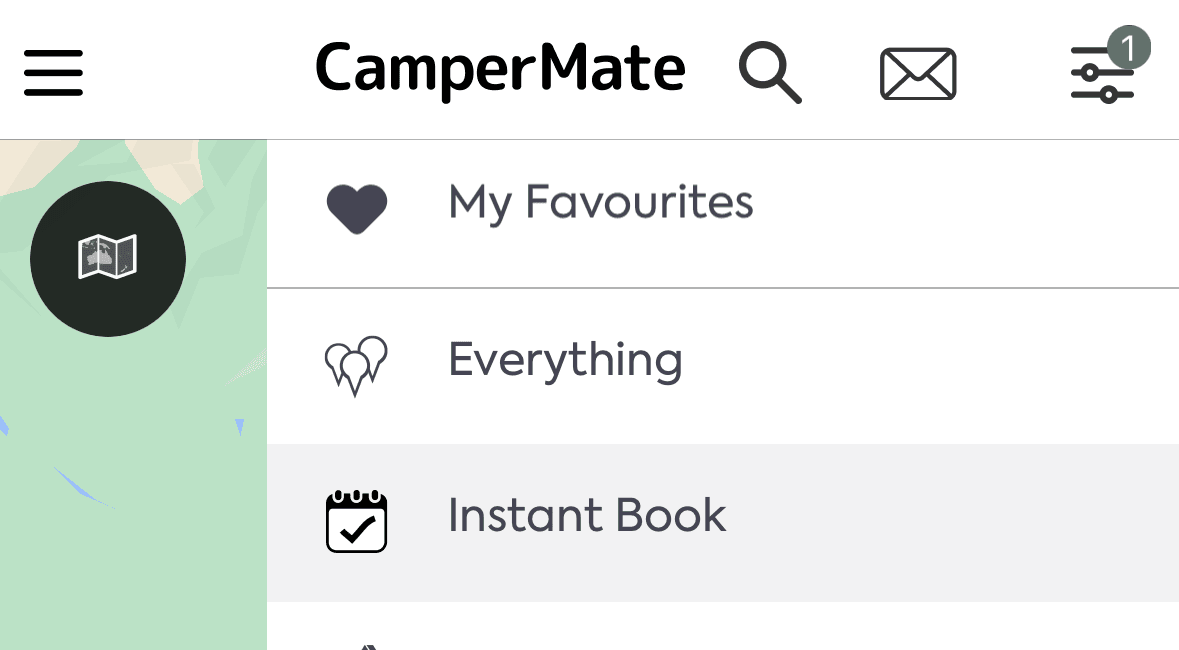
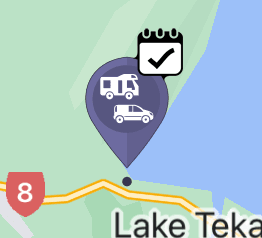
Look for the tick on the icon and on the thumbnail. You can also filter for campgrounds and activities that are instantly bookable by selecting Instant Book on the right-hand menu.
How can I filter what the map shows?
You can select a category from the right-hand menu and/or make a search in the search bar.
How do I know a filter is on?
A green 1 will appear on the right-hand menu if a filter is selected.
How do I turn a filter off?
Open the right-hand menu and unselect or simply press Everything in order to reset the filter.
How do I find/access offline maps?
If you visit the left-hand menu on the app, you will see a menu item called offline maps. We recommend downloading offline maps while connected to WiFi before you travel out of range. This allows you to research all the different icons on the app offline, with the background of the map clearly visible. If you don’t have maps downloaded and you go offline, you can still see the icons, however the map itself becomes blurry and you can’t see the infrastructure. See screenshot below:
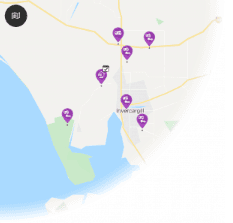
Downloading the maps does not open the maps in a new window, it only allows you to use the app offline and still see all the intricacies of the map. This is how the map looks online, and offline with the maps downloaded:
ONLINE VIEW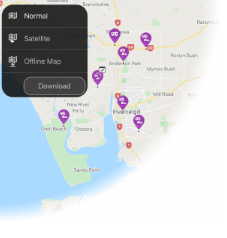
OFFLINE VIEW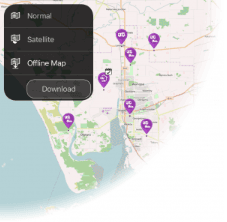
Please keep in mind that we update our information daily and are constantly adding new icons and disabling icons that are no longer available. Therefore, it’s important to connect the app to WIFI regularly for data updates to ensure you’re seeing the latest information.
What are location services and why should I allow them?
During install, the app will ask to access your device’s location. We recommend enabling location services so you can receive important location-based notifications to your device, this includes personalised in-app messages and email recommendations while you’re on the road.
What notification will I receive & should I allow them?
The location services and the app notification services work together to ensure that you are receiving the most relevant notifications. You’ll hear from us about things like location specific offers, deals and also updates about when we launch competitions and surveys too. Go to Settings in the top left menu to apply your notification preferences. You may need to check your phone’s default settings for the app too, to make sure it’s set to receive the message and notifications on your phone too.
How do I save a place of interest that I want to view again later?
Each point of interest has a ‘favourites’ option where you can store and save any places you are planning to visit. To save a favourite, simply tap the ‘heart’ icon on the top right-hand corner of the listing image.
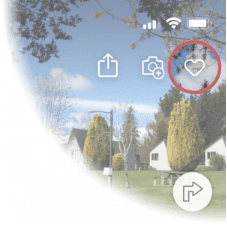
You can then filter the map with all of your ‘favourites’ by selecting the ‘Favourites’ option in the right-hand filter menu. These will also be stored in the top left navigation under My Favourites in My Profile.
Can I share a point of interest via a message or email?
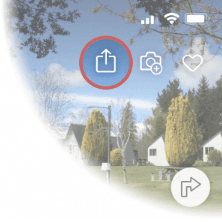
Once you are in the Details Screen of the particular business or attraction you will see a share icon in the top right of the screen for that POI. Tapping that will enable you to share via a number of different share options.
How do I share the app with friends or family?
In this same app menu you are in now, you will find a heading that says “Share This App”. Simply tap that and it will give you a number of different sharing options to use, such as email, sms, Messenger, Whatsapp etc.
How do I get a refund on my booking?
Bookings made on the app are facilitated through third-parties. Please see your email confirmation for refund instructions.
How do I post a comment?
You can add a comment in any business or point of interest by swiping to the comment tab and selecting ‘add a comment’
We approve all the comments manually and as long as feedback is constructive and not offensive, we take up to 10 working days to publish any feedback. We appreciate and value your opinion, but please note that personal comments or references to business owners directly might be deemed inappropriate. Wherever possible, we use the comments to improve the listing with updated info. If your comment is about a pricing change for example, we’ll correct the price but might choose not to publish the comment. Same applies to location, facilities etc.
How do I add a photo?
You can add a comment in any business or point of interest by selecting the camera icon on the business profile and selecting a photo.
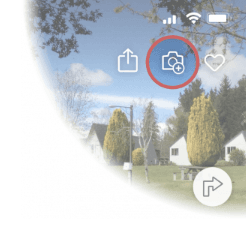
All suitable photos are added and stored in our library. We periodically review each listing and make sure the photos displayed are the best available ones. Occasionally, you can also find your photos posted on our facebook and instagram pages so give us a follow.
How do I change the language of the app?
The apps on the TripTech network are translated to German, French and Chinese. If your device is set to any of these languages, the app will automatically show in the language of your device. To view the app in English, simply change your device settings to English.
How do I list my business on CamperMate?
If you own a campground, experience, tour, activity or manage an attraction or any other business or group, big or small, we would love to list you on the app. Please email info@campermate.co.nz to register your interest.